How to Pair Phone to F150 Sync: A Simple Guide for You
Getting your phone connected to your Ford F-150 might seem tricky at first. Many people find it a little confusing because of all the different buttons and settings. Don’t worry, though! This guide will make the process of how to pair phone to f150 sync straightforward. We’ll walk you through each step, ensuring you can enjoy hands-free calling and music in your truck. Let’s begin the process that makes it simple and easy!
Setting the Stage: Preparation Before Pairing
Before you begin the process of how to pair phone to f150 sync, there are a few things to make sure are set. This preparation will set up for a smooth pairing experience. Make sure your phone’s Bluetooth is turned on. Also, confirm that your truck’s infotainment system is turned on and ready. It’s also useful to have your phone charged, so you don’t run out of battery mid-sync. Consider checking your truck’s manual for specific instructions for your model year, as the location of some of the steps may differ slightly. With these basics covered, you’re ready to get started.
Check Your Phone’s Bluetooth
Bluetooth is the wireless technology that allows your phone to communicate with your truck. If your phone’s Bluetooth isn’t turned on, your F-150 won’t “see” it. Most phones have Bluetooth settings located in the settings menu, often labeled as “Bluetooth” or “Connected Devices.” Make sure Bluetooth is activated before attempting to pair. The phone needs to be discoverable or visible to other devices. This allows the truck to locate your phone. Keep your phone close to the truck, within a few feet, to increase the chance of successful pairing.
- Android Phones: Go to Settings, then Connections or Bluetooth, and turn Bluetooth on. Make sure your phone is discoverable.
- iPhones: Open Settings, tap Bluetooth, and switch the Bluetooth toggle to on. Your phone should automatically become discoverable.
- Verifying Compatibility: Check that your phone is compatible with your F-150’s infotainment system. Newer systems usually work with most phones, but older systems might have limitations. You can often find compatibility lists on Ford’s website or in your truck’s manual.
Activate the Truck’s Infotainment System
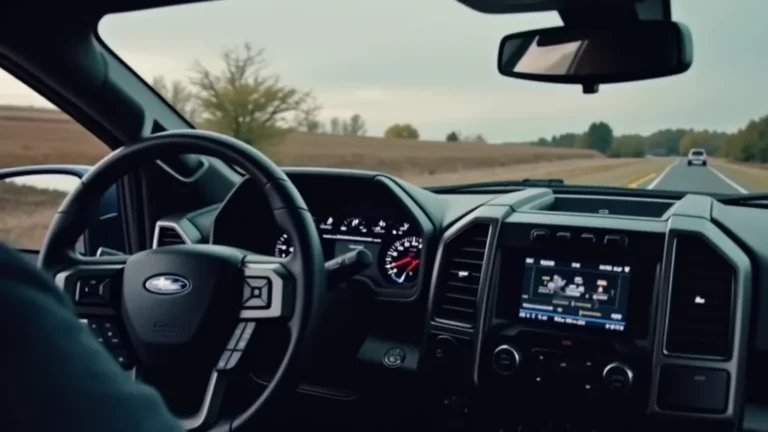
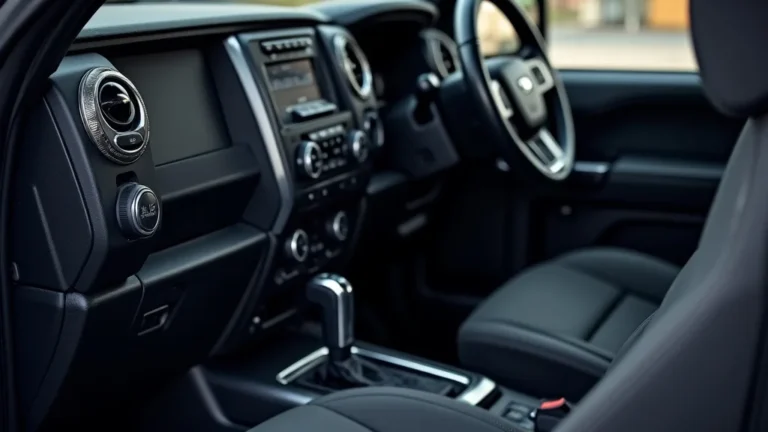
Your truck’s infotainment system is the central hub for all the connectivity features. Before you can pair your phone, you need to make sure this system is on and ready. The exact steps may vary depending on the year and trim of your F-150. However, the basic principle remains the same. Find the power button for your infotainment system. It’s usually located on the center console or dashboard. Turn on the system by pressing this button. Once the system has started, you can then access the Bluetooth settings. This is where you’ll initiate the pairing process with your phone.
- Locating the Power Button: Look for the infotainment system’s power button. It is usually found on the center console or within the touchscreen interface.
- System Startup Time: Allow the system a few moments to boot up completely. This ensures all features, including Bluetooth, are ready.
- Navigating the Menu: Familiarize yourself with the infotainment system’s menu. It is very helpful to understand the basic navigation before starting the process.
Familiarize Yourself With Your Truck’s Manual
Your truck’s manual is an important tool in the process of how to pair phone to f150 sync. The manual has specific instructions tailored to your F-150 model year. The features can differ slightly. You will locate detailed instructions on how to access the Bluetooth settings. It offers troubleshooting tips for common issues. The manual can also assist you with voice command prompts. Referencing the manual can save time and frustration. It’s a great place to begin if you get stuck.
- Model-Specific Information: Every F-150 model year has slightly different features. The manual is the most accurate source for your specific vehicle.
- Bluetooth Settings Location: Find the section in the manual about Bluetooth or connectivity. The manual explains exactly how to access the Bluetooth menu in your truck.
- Troubleshooting Section: If you encounter any problems, such as your phone not being detected, the manual often provides solutions.
Syncing Your Phone: The Pairing Process
The actual pairing process involves your phone and your truck’s infotainment system talking to each other. Once you have prepared your phone and your F-150, the next step is to sync them. This usually involves searching for devices, selecting your phone, and entering a passkey or confirming a pairing code. Following these steps carefully will allow you to get connected quickly. You can then use your phone’s features through your truck’s system.
Initiating the Search on Your Truck
On your truck’s infotainment system, you need to start the search for your phone. This process generally involves going into the settings menu. You would then select the Bluetooth or phone option. This will then prompt the system to search for devices in range. The exact steps may vary. Typically, you will select the option that says “Add Device,” “Pair Device,” or something similar. Once this search begins, your truck will actively look for discoverable Bluetooth devices.
- Accessing the Bluetooth Menu: Locate the Bluetooth settings in your truck’s infotainment system. It might be under the “Settings,” “Phone,” or “Connectivity” menu.
- Selecting “Add Device”: Choose the option to add or pair a new device. This tells the system to start searching.
- System Search Process: Once you select to add a device, the infotainment system will actively start to search for any available Bluetooth devices.
Selecting Your Phone from the List
Once your truck has found your phone, your phone’s name will appear on the infotainment screen. You should see a list of available Bluetooth devices. Your phone will be in this list. It is very important to make sure you select the correct device. This is often the name of your phone. You might be able to customize this name in your phone’s Bluetooth settings. Tap on your phone’s name on the truck’s screen to begin the connection.
- Identifying Your Phone: Make sure you choose the correct device from the list. It is often the name you gave your phone.
- Tapping on Your Phone: Select the listed phone device by tapping it on the truck’s touchscreen.
- Screen Confirmation: The truck will then prompt you to begin the pairing process.
Entering the Passkey or Confirming the Code
After selecting your phone, the infotainment system will show a passkey or pairing code. This step makes sure you are connecting to the correct device. On your phone, you will then see the same passkey or code. The numbers will appear on both your phone’s screen and the truck’s screen. If the codes match, confirm the pairing on both devices. This confirms that the connection is secure and that it is the right device.
- Matching Codes: Carefully look at the pairing codes or passkeys. Make sure the codes displayed on your phone match the ones on the truck’s screen.
- Confirming Pairing: Tap “Pair,” “OK,” or the appropriate button on both your phone and the truck’s infotainment system.
- Security Measures: This passkey confirms that you are connecting to your own phone, preventing someone else from connecting without your permission.
Features You Can Enjoy
Once your phone is paired, you unlock a suite of handy features that make driving easier and more enjoyable. These features are designed to integrate your phone seamlessly with your truck’s systems. You can make and receive calls hands-free. You can also stream music and use voice commands. These enhancements improve safety. This leads to a more convenient driving experience.
Hands-Free Calling Capabilities
One of the main benefits of pairing your phone is the ability to make and receive calls without touching your phone. This is a very important safety feature that lets you keep your hands on the wheel and your eyes on the road. The truck uses its built-in microphone and speakers to conduct calls. You can dial numbers or answer incoming calls using the touchscreen or voice commands. This greatly reduces the risk of driver distraction. This also makes communication while driving much safer and easier.
- Voice Commands: Use voice commands to make calls. You can say phrases like, “Call Mom” or “Call “.
- Answering Calls: When someone calls, the truck’s screen shows their number or contact information. You can then accept the call with a simple tap.
- Call Quality: The built-in microphone usually filters out background noise. You will be able to talk clearly.
Music Streaming and Audio Playback
You can listen to music, podcasts, or audiobooks from your phone through your truck’s speakers. You connect your phone via Bluetooth. Then, select the audio source on your truck’s infotainment system. You can then control the playback directly from the truck’s interface. This includes features like play, pause, skip, and volume control. Enjoying your favorite audio content is safe and easy while driving.
- Bluetooth Audio Source: Select “Bluetooth Audio” as the source on your truck’s infotainment system.
- Playback Control: Use the steering wheel controls or the touchscreen to adjust volume, skip tracks, and pause/play.
- Compatibility: Most streaming apps, like Spotify, Apple Music, and Pandora, work seamlessly through Bluetooth.
Voice Command Integration
Many Ford F-150s integrate with voice assistants. These include Apple’s Siri or Android’s Google Assistant. You can activate the voice assistant by pressing a button on your steering wheel. You can then use voice commands to control many functions on your phone. You can also make calls, send texts, and play music. This hands-free control minimizes distractions. It makes using your phone very simple while driving.
- Activating Voice Assistant: Press the voice command button. It is usually located on the steering wheel. This is the button with the microphone icon.
- Voice Commands Examples: Use commands like “Call ,” “Play ,” or “Send a text to “.
- Functionality: The voice assistant allows you to control many phone features without touching the phone, making it much safer.
Troubleshooting Common Problems
Occasionally, you might face some issues when pairing your phone. Don’t worry. This section will walk you through common problems and their solutions. Common issues include the phone not being detected, connectivity issues, and problems with audio streaming. By knowing these steps, you will be able to easily resolve these small problems. Enjoying the full functionality of your connected phone in your F-150 will become easy.
Phone Not Detected by the Truck
The most common problem is that your phone doesn’t show up on your truck’s system during the pairing search. There are several reasons why this might occur. The first is that Bluetooth isn’t enabled on your phone. Ensure it is turned on and discoverable. Sometimes, there is a problem with the truck’s system. Try restarting the infotainment system. This will often clear any temporary glitches. Also, make sure that your phone is close to the truck during the search process. A weak Bluetooth signal can prevent successful pairing.
- Check Bluetooth Settings: Make sure Bluetooth is on and set to discoverable on your phone.
- Restart the Infotainment System: Turn off the truck’s infotainment system. Then, turn it back on. This refreshes the system.
- Proximity: Keep your phone close to the truck. This will strengthen the Bluetooth signal.
Connectivity and Pairing Issues
You may experience problems with the pairing process itself. This may be that the passkey doesn’t match or the system can’t fully connect. First, ensure you are entering the correct passkey or confirming the code that appears on both the phone and the truck’s screen. If the pairing fails, try deleting your phone from the truck’s system and your truck from your phone’s Bluetooth settings. After deleting the devices, try pairing them again. If problems continue, ensure there are no other Bluetooth devices interfering with the connection.
- Check Passkey: Double-check the passkey displayed on your phone matches the truck’s screen.
- Delete and Re-Pair: Delete the phone from the truck and the truck from the phone. Then, try pairing again.
- Interference: Try turning off any other Bluetooth devices nearby. This may interfere with the connection.
Audio Streaming Problems
You might have trouble streaming music or audio after pairing is complete. If the audio is not working, first ensure your phone is connected and the Bluetooth audio source is selected on your truck’s system. Make sure the volume on both your phone and the truck is turned up. Check your phone’s music app or streaming service. Ensure the audio is playing. Try restarting both your phone and the truck’s infotainment system. A quick restart often resolves playback glitches.
- Check Connections: Make sure your phone is connected via Bluetooth and the correct audio source is selected.
- Volume Settings: Ensure the volume is turned up on both your phone and the truck.
- Restart: Try restarting your phone and the truck’s infotainment system.
Advanced Tips and Tricks
Once you’ve mastered the basics, there are some more tricks to improve your experience. These tips can customize your use of Bluetooth and connectivity in your F-150. These are designed to make your daily use even more seamless and convenient. They range from using voice commands to setting preferred devices, which will personalize your driving experience.
Setting Preferred Devices and Automatic Connections
Most F-150 systems allow you to set a preferred phone. This makes the connection process even easier. You can usually find this setting in your truck’s Bluetooth menu. You can select one device to automatically connect when the truck starts. This removes the need to manually connect every time. You can also prioritize phones. Set one phone to connect first. This is very useful if you and your family share the same truck. This will eliminate any wasted time.
- Accessing Preferred Devices: Find the setting for preferred devices in your truck’s Bluetooth settings.
- Selecting and Prioritizing: Choose which phone to connect automatically. You can also set the order of devices to connect.
- Automatic Connection: Once set, your preferred phone connects automatically when you start the truck.
Using Voice Commands Effectively
Voice commands are one of the most convenient features. You can make phone calls, play music, and send texts without touching your phone. It is very important to use clear and concise commands. Speak in a normal tone of voice. Ensure there is minimal background noise. Experiment with different phrases to see which ones work best. Take the time to learn the specific voice commands your truck’s system supports. This is easy to find in your manual or online.
- Clear Commands: Speak clearly and use concise commands.
- Minimize Background Noise: Close windows and avoid noisy environments for the best performance.
- Experimentation: Try different phrases to learn how your truck responds best.
Updating the Infotainment System
Keeping your truck’s infotainment system up to date improves performance and features. Software updates often include better Bluetooth connectivity, new features, and bug fixes. You can check for updates in the truck’s settings menu. You can often download them over Wi-Fi. It is very important to follow the instructions for the update process. During an update, the truck needs to remain on. Following these updates will improve the Bluetooth experience in your F-150.
- Checking for Updates: Go to the settings menu to check for system updates.
- Downloading Updates: You can usually download updates over Wi-Fi, or you might need a USB drive.
- Installation Process: Follow the on-screen instructions during the update. Keep the truck on during the entire process.
Frequently Asked Questions
Question: How do I find the Bluetooth settings on my F-150?
Answer: Bluetooth settings are usually in the infotainment system’s main menu, under “Settings,” “Phone,” or “Connectivity.” Check your owner’s manual for your specific model’s location.
Question: My phone isn’t showing up when I search for devices. What should I do?
Answer: Make sure your phone’s Bluetooth is on and discoverable. Try restarting your phone and the truck’s infotainment system. Ensure you are close to the truck during the search.
Question: Can I use voice commands to make calls?
Answer: Yes, you can use voice commands. Press the voice command button on your steering wheel and say “Call ” or dial a number. Your system should also connect with Siri or Google Assistant.
Question: How do I stream music from my phone through my truck’s speakers?
Answer: Pair your phone via Bluetooth. Select “Bluetooth Audio” as the audio source on your truck’s infotainment system. Then, start playing music from your phone.
Question: What if the pairing code doesn’t match?
Answer: Double-check that the pairing codes displayed on your phone and the truck’s screen match. If they don’t, cancel the pairing. Then, try again.
Final Thoughts
You now have the knowledge of how to pair phone to f150 sync, and are ready to enjoy the convenience of your phone’s features while you drive. Remember to always make sure Bluetooth is enabled on your phone and the truck’s infotainment system is ready. The steps involve activating the search, selecting your phone, and confirming the pairing code. You can then access hands-free calling, music streaming, and voice commands. Troubleshooting any problems should be easy now that you know the steps. With this guide, you can confidently connect your phone and enjoy a safer, more connected drive. Have fun exploring all the features of your connected truck!